
I’ve been building websites for more than ten years, and I’ve rebuilt plenty of them. This one was different.
Over the past few weeks, I rebuilt every page of ckreativedigital.com on Elementor’s new Atomic editor. That’s more than three dozen pages, and it took about 25 hours of my time. The first few pages took a while. By the end, some took minutes. Doing the same conversion by hand, element by element, would easily have taken many times that.
I didn’t do it alone. I did it with Claude, connected straight to the site through the new Elementor MCP. Elementor Pro, the Atomic editor, and the MCP each matter on their own. Together, they change who can build and manage a website, including owners who’d rather handle their own.
Elementor Pro, in plain English
If you’ve never used it, Elementor is the visual editor that sits on top of WordPress. You click a heading, image, or button, change it, and publish when you’re happy with it. No code. It’s drag and drop.
The free version handles the content on your pages. Pro opens up everything else: your header and footer, forms that send to your inbox or email list, popups and announcement bars, reusable sections, and store pages if you sell online. If you’ve ever wanted to change the phone number in your header and couldn’t, that’s the line between Free and Pro.
Pro matters even more now, because it also decides how much of your site an AI assistant can work on.
Every one of our Care Plans includes a licensed copy of Elementor Pro that we keep updated, whether your site is on our hosting or someone else’s. Care Plans start at $29 a month, and here’s everything Pro includes. If you’d rather skip the Care Plan, you can buy a license directly from Elementor (affiliate link).
The Atomic editor is a better foundation
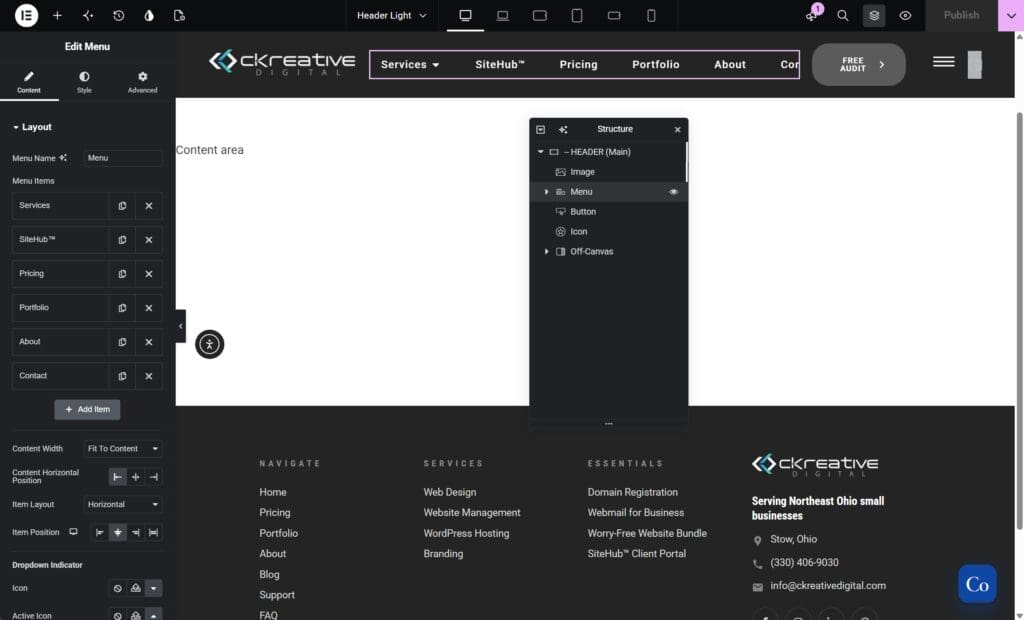
In March 2026, Elementor released version 4.0 and, with it, the Atomic editor. Pages are now built from smaller, simpler pieces that Elementor calls Atomic elements. That sounds like a developer detail, but you’d notice the difference as an owner.
Pages get lighter. Each element carries far less code underneath. Our rebuilt Pricing page ended up with 61% fewer building blocks, 45% less page code, and 40% less styling code than the old one.
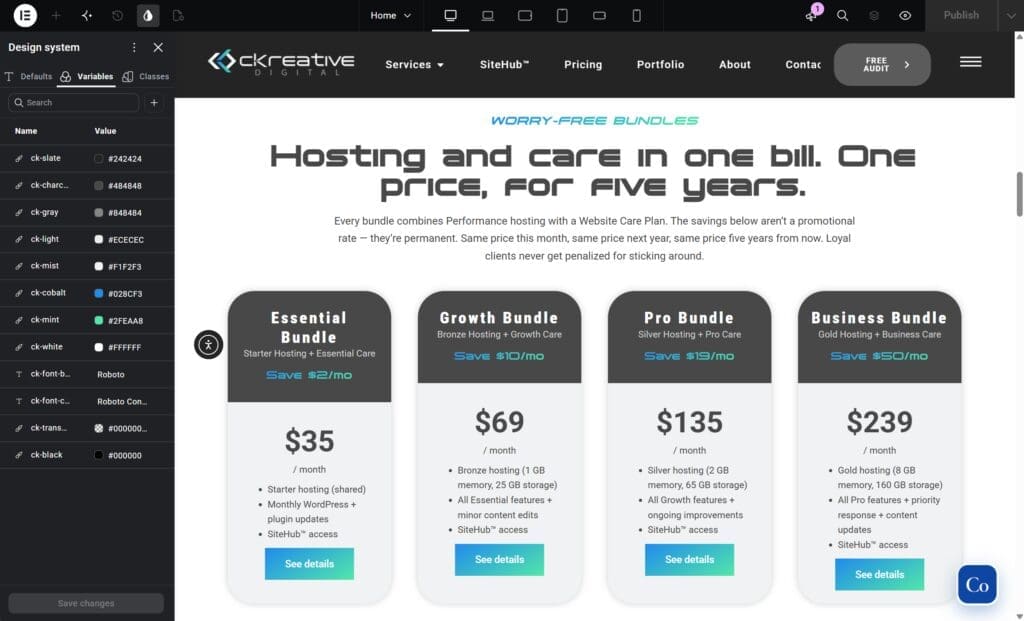
You set things once. Brand colors, fonts, and sizes live in one place. Change your main color, and every button and heading using it follows along. With Pro, you can also turn a banner or a row of reviews into a reusable section, edit it once, and have every page that uses it update.
Phones get their own treatment. Every style setting can be adjusted per screen size, so fixing something on mobile doesn’t wreck the desktop version. And every element is styled from the same panel, so once you learn it, you know it.
Here’s the catch, and it’s why I sat on this for months. Updating Elementor doesn’t convert an existing site. Your old pages keep working, but to get any of these benefits you have to rebuild them with the new elements, piece by piece. For us, that meant every section, heading, button, and card on more than three dozen pages. I knew it was worth doing. I just didn’t want to do it.
The Elementor MCP is what got me moving
In September 2026, Elementor 4.3 added the Elementor MCP. MCP stands for Model Context Protocol, an open standard for connecting AI tools to other software. In plain terms, it lets an AI assistant read your Elementor pages and edit them directly. Elementor lists Claude Desktop, Claude Code, Cursor, and Codex as the tools it works best with. I used Claude Desktop.
Here’s the detail that mattered to me: the MCP only works with Atomic elements. So the tool that made the rebuild fast was also the reason to do it.
Every page followed the same rhythm. We talked through what it needed to say and what to cut. Claude built a draft with the new elements, using our brand colors and styles, then previewed it and checked it at desktop and phone sizes. Then I reviewed it, made the calls, and published. The early pages took the longest. Once our styles and layouts were set, the rest went fast.
The rebuild also forced a fresh look at every link and label. On the old blog page, four buttons went nowhere, and one of them read “Website Mangement.” Ten years in, and I still shipped a typo. None of that made it to the new site.

If you run your own site, read this
This is where it gets interesting for small business owners.
Until now, managing your own website meant learning the editor: which panel holds which setting, and how to change something on phones without breaking it on desktop. A lot of owners gave up and called someone for every little change, and I don’t blame them.
With the MCP, you describe what you want in plain English:
- “Make the phone number in our header bigger on phones.”
- “Add a section about our new service under the reviews, and make it match the rest of the page.”
- “Update our holiday hours in the announcement bar.”
- “Why does this page look different on my phone?”
The assistant builds the change as a draft. You open it in the same Elementor editor, look it over, tweak anything you want by hand, and publish when it’s right. Since it works from your brand colors and styles, new sections actually match the rest of the site.

You’ll need a few things in place. Your site has to be built with Atomic elements, since the MCP doesn’t work on older Elementor pages yet (Elementor says that’s coming). You need an administrator login. You need an AI tool like Claude Desktop. Connecting is free, but the AI tool has its own subscription, and Claude’s Pro plan runs about $20 a month. And you’ll want Elementor Pro, because without it, the assistant can only touch what the free version can.
If your site is still on the older Elementor setup, the rebuild comes first. That’s work we do.
Setting it up takes a few minutes
The connection lives in your WordPress dashboard. Here’s how it went with Claude Desktop:
- Make sure your site is on Elementor 4.3 or newer and built with Atomic elements, and that you’re logged in as an administrator.
- Install Claude Desktop on your computer and sign in.
- In WordPress, go to Elementor → Elementor MCP.
- Choose Claude Desktop from the list of AI tools.
- Copy the prompt Elementor gives you. It creates a secure application password behind the scenes and builds it into the prompt.
- Paste the prompt into Claude Desktop. That’s the connection.
- Test it with something simple, like “List the pages on my site.” If your pages come back, you’re in.

Two things I learned along the way. If WordPress won’t show the application password option, open your dashboard in a private browser window. A login your browser saved from an earlier password-protected version of the site can hide it. Also, clean up connections you aren’t using. Elementor can create one for each AI tool, and each one is a key to your site. We found a couple of extras we had initiated but then didn’t use.
It’s just as good at fixing what breaks
I went in expecting help with design. I didn’t expect how much it would help when things went sideways.
After launch, our footer kept showing up as a plain white block. Clearing the cache provided a temporary fix, but then it broke again after a page refresh. Instead of guessing, Claude scanned all 485 of Elementor’s style files on the live site and found the cause. Our speed plugin’s compression was clashing with a stray character in Elementor’s files and breaking style rules. About 30 pages and 11 site-wide styles were affected, most of them less visibly than the footer. The fix was one setting, and a second scan confirmed it.

Then there was the flicker. Our new scroll animations looked great on desktop, but on phones, the first section below the top banner would appear, vanish, and fade back in. Claude traced it to shorter phone screens, where that content is already visible when the page opens. It also caught another issue: a fast swipe could leave a section invisible until you reloaded the page. It wrote a small script to fix both, I added it to the site, and it checked the live pages at phone size to confirm.
Either of those issues could have easily chewed up hours of trial and error. Instead, it took Claude a couple of minutes to assess, solve, and test the solutions.
Keep a person in the loop
As is still the case with any AI tool, it wasn’t always right. And if you’re going to run your site this way, you should know that.
Once, Claude told me a fix I’d already made wasn’t working. I’d checked it myself, so I pushed back. It turned out it was looking at an old, saved copy of the page’s styles. Another time, every review in a reviews section showed the same date. It blamed the review data first and only found the actual setting after I questioned it.
It’s fast and thorough, but it only knows what it can see. Elementor’s own guidance says as much: the AI does the work, but the judgment directing it is yours. So review every draft before you publish, keep a current backup before bigger changes, and treat the connection like a key to your site. We revoked ours before launch and issued a fresh one for the live site.
Is this right for your website?
It’s a strong fit if you like making your own updates but don’t want to learn every setting, if your site changes often (services, hours, promotions, new pages), and if you’re already on WordPress and Elementor or planning a rebuild.
If you’d rather never open your website’s dashboard, that’s fine too. Most owners still want a real person to reach when they get stuck, and someone keeping an eye on updates, backups, and security when they’re not. Our Care Plans cover that, Elementor Pro included, on our hosting or yours.